 Free Image Conversion
Choosing the Right Image Format: A Beginner’s Guide
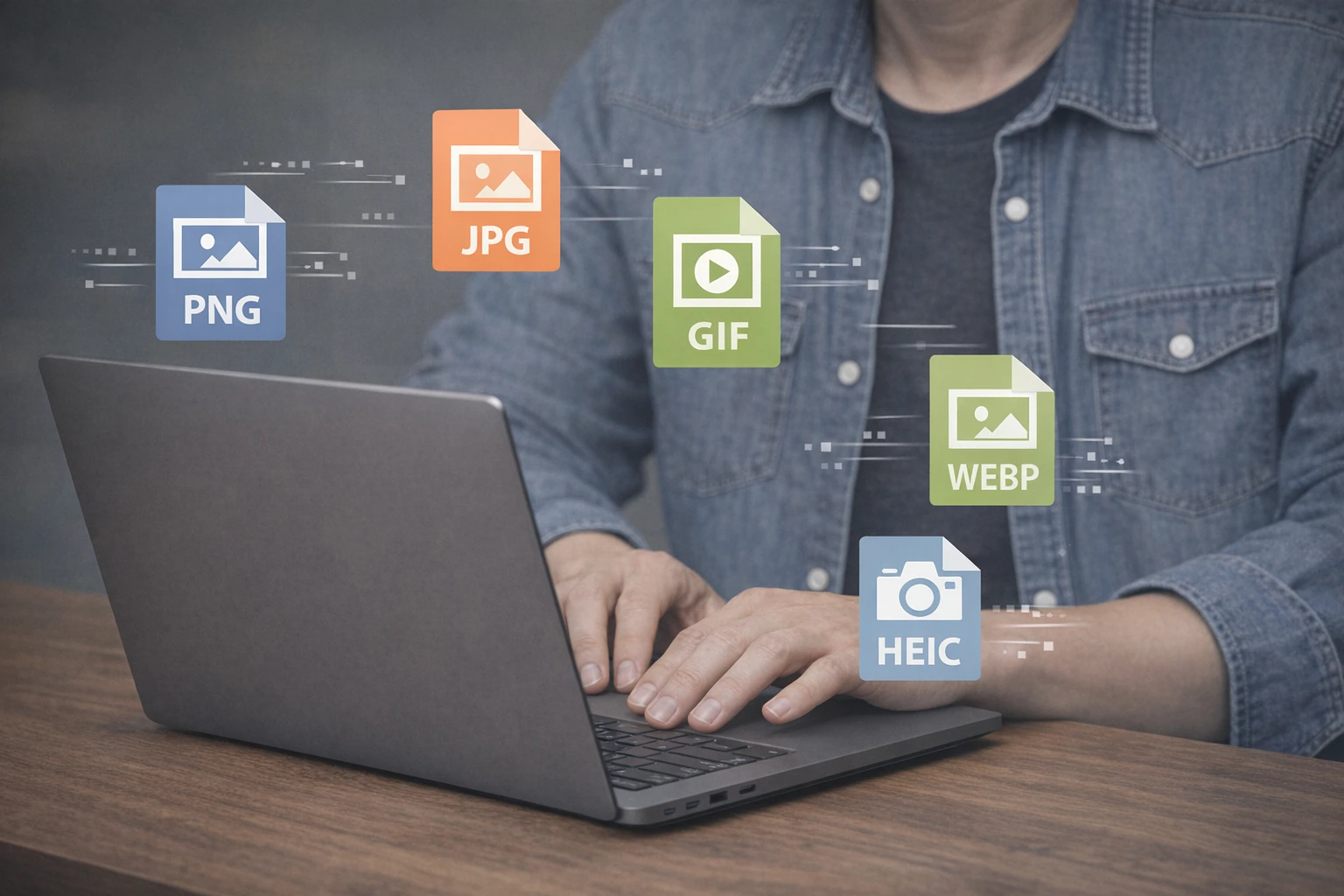
In the world of digital images, there is no "perfect" format. Each file type was designed with a specific goal in mind; some are built for high-quality photography, while others are optimized for speed or animation.
When you use our utility tools, choosing the right output format depends entirely on what you plan to do with the image next. Here is a breakdown of the formats we support and when you should use them.
1. PNG (Portable Network Graphics)
Best for: Logos, icons, and graphics with text.
PNG is a "lossless" format, meaning it doesn't lose any quality when saved. For years, it was the only choice for transparency. While newer formats now support this feature, PNG remains the "gold standard" for compatibility. It will display correctly in every browser, email client, and document editor in existence.
2. JPG / JPEG (Joint Photographic Experts Group)
Best for: Photography and social media.
JPG is the most common format in the world. It uses "lossy" compression to shrink file sizes significantly. While it technically loses a tiny bit of data every time you save it, the human eye usually can't tell the difference in a photograph.
Note: JPG does NOT support transparent backgrounds.
3. WEBP (The Modern Web Standard)
Best for: Speeding up your website.
Developed by Google, WEBP is a modern "all-in-one" format. It offers the transparency of a PNG and the small file size of a JPG—often with 25-30% better compression than both. It is the best choice for web performance, though very old legacy software may struggle to open it natively.
4. GIF (Graphics Interchange Format)
Best for: Simple animations and web graphic content.
While we often think of GIFs as moving images, they are also used for static images with very few colors. However, they are limited to only 256 colors, so they aren't great for high-resolution photography.
5. HEIC (High Efficiency Image Container)
Best for: Saving space on mobile storage hardware.
If you capture images on an iPhone, your photos are likely stored as HEIC. This format allows for high-quality photography at half the file size of a traditional JPG. However, it’s notoriously difficult to use on Windows or older websites—which is exactly why we built our local conversion suite.
Which format should I choose?
| If you want... | Use this format: |
|---|---|
| Maximum compatibility with transparency | PNG |
| The smallest file for a website (with transparency) | WEBP |
| To share a standard photo on social media channels | JPG |
| To print a clean high-quality graphic asset | PNG |
| To maximize raw desktop and phone drive space limits | HEIC |
Ready to optimize your files? Head back to our homepage and upload your media assets. Remember, all processing tasks happen right inside your browser engine, so your sensitive files never travel across an online network!
← Back to Blog Feed